New feature3 minute read
Setting up your booking page now takes six questions
We cut setup from twelve screens to seven. Answer six questions, filled in for your trade, and your booking page goes live. Your look, your customer list and deposits wait on your dashboard for when you are ready.
Director, DocMason and FullDiary
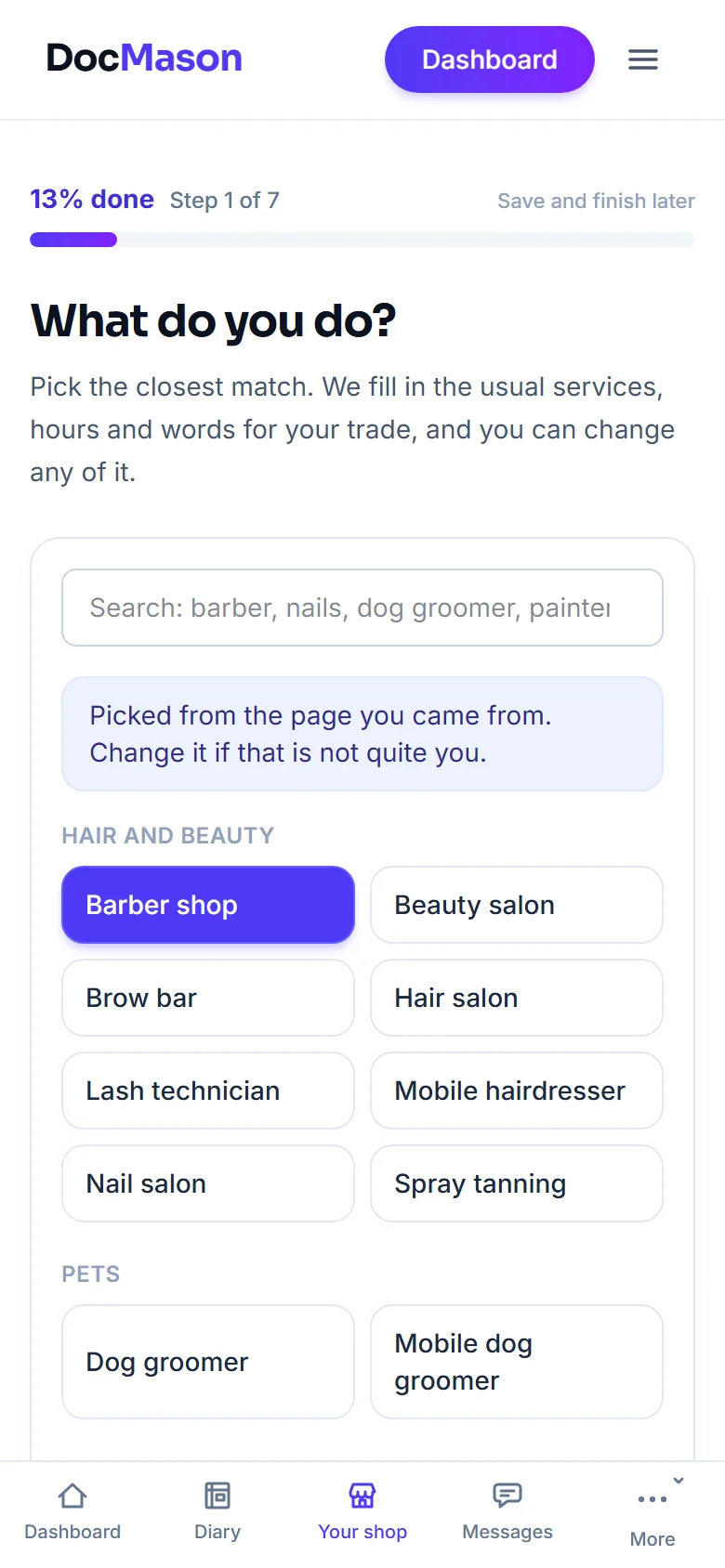
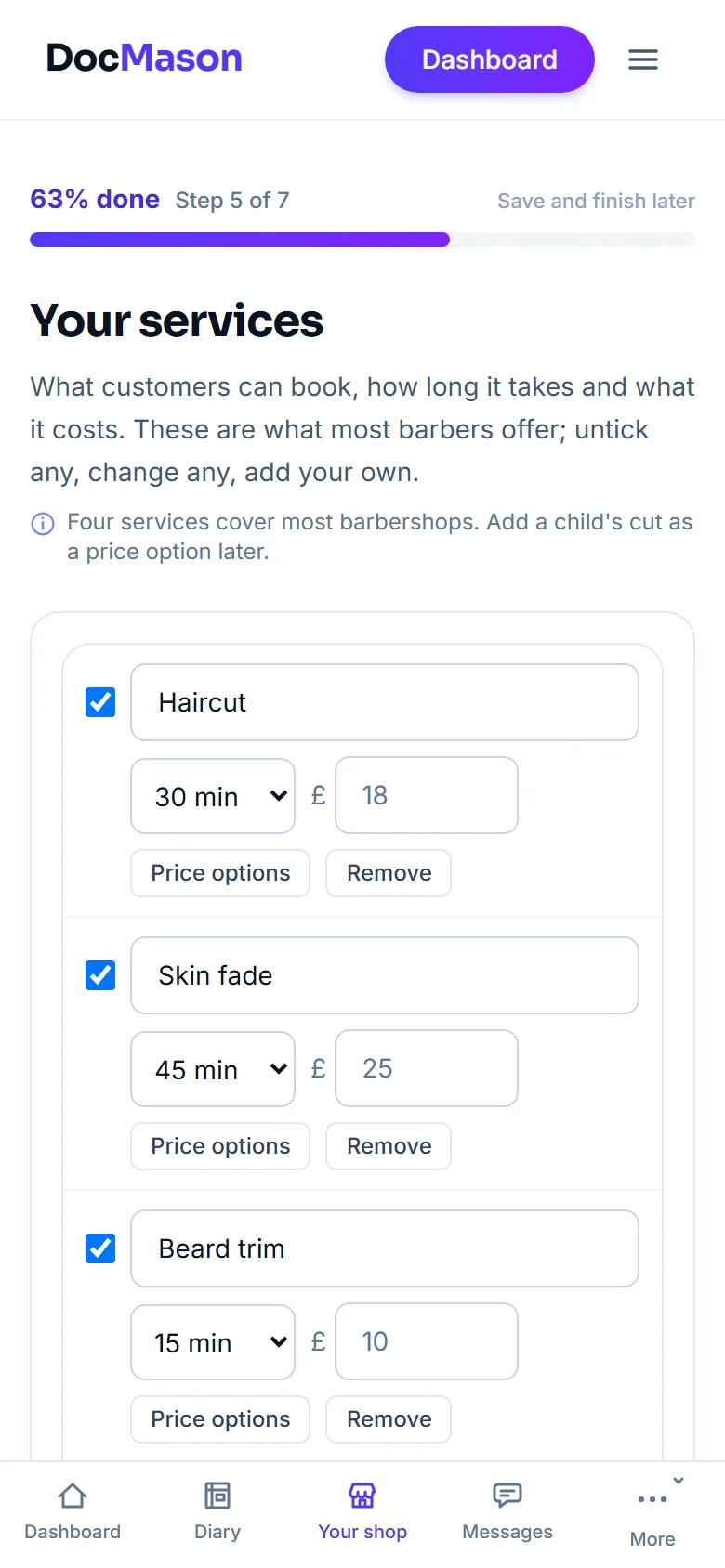
FullDiary is the booking system from DocMason for appointment businesses: an online booking page, a diary and reminders in one place. Setting it up used to take twelve screens, and plenty of people did the hard part, their services and their hours, then stopped a few screens short of a live page. So setup now asks only what a booking page cannot work without.
Six questions, then you are live
- What do you do? Pick your trade and the usual services, hours and words come filled in.
- Who works with you? Just you, or add your team.
- Where do customers come to you? Your own place, somewhere you work from, or you go to them.
- Your hours. The usual week for your trade, ready to change.
- Your services. What customers can book, how long it takes and what it costs.
- The small print. Cancelling, notice and reminders, with sensible defaults, so you can just continue.
Then the last screen puts your page live and gives you your link, a QR card to print and a preview of what customers see. A bar at the top shows how far through you are. Signing up counts as the first step, so it starts at 13% rather than nothing, and fills to 100% when your page goes live.
The rest waits on your dashboard
The things that make a good page better, but that you do not need on day one, moved to the Getting started card on your dashboard. Each one ticks itself off when it is done, and each has a Not interested if it is not for you.
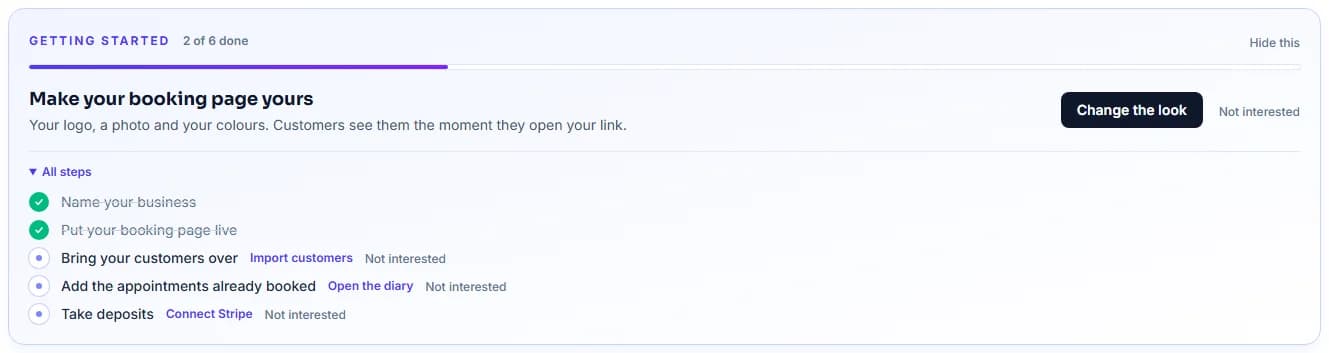
- Make your booking page yours. Your logo, a photo, your colours and a page style.
- Bring your customers over. Import your list from your old booking system or a spreadsheet.
- Add the appointments already booked. Put what is already in your book into the diary, so nobody can book over it.
- Take deposits. Connect your own Stripe account and ask for a deposit to cut no-shows. Until then, nobody is asked for one.
Already part way through?
Your answers are kept. Open Your shop and carry on, and you pick up on the next question that is still there. Anything you already set, like deposits or your look, stays exactly as it is.
Questions people ask
- Do I still get asked about deposits?
- Not during setup. Your page takes bookings without a deposit until you connect Stripe and switch deposits on, from the Take deposits step on your dashboard.
- Can I keep my page private while I get ready?
- Your page goes live at the end of setup. You can take it down any time from Your shop, and put it back up with one tap.
- Is the FullDiary phone app the same?
- The app keeps its current setup for now. Anything you set up in one shows in the other.
- Which plan is it on?
- Every plan. Setup and the Getting started card are the same on Free and Pro.
Read next
Written by
Matt SucklingDirector, DocMason and FullDiary
Matt runs Cynical Software Ltd, the Perthshire company that makes DocMason and FullDiary, and builds both.